
Client Portal.
Your portfolio, in view.
See how a shared workspace could bring your properties, project updates and documents together. Explore T-Rock’s interactive preview from an owner’s portfolio view down to an on-site team member’s assigned work.
No sign-in required. The interactive demo uses fictional data. This configurable preview uses sample properties, people, documents and illustrative AI-generated images. It is not a live client account. Your project’s available features and access settings would be confirmed with T-Rock.
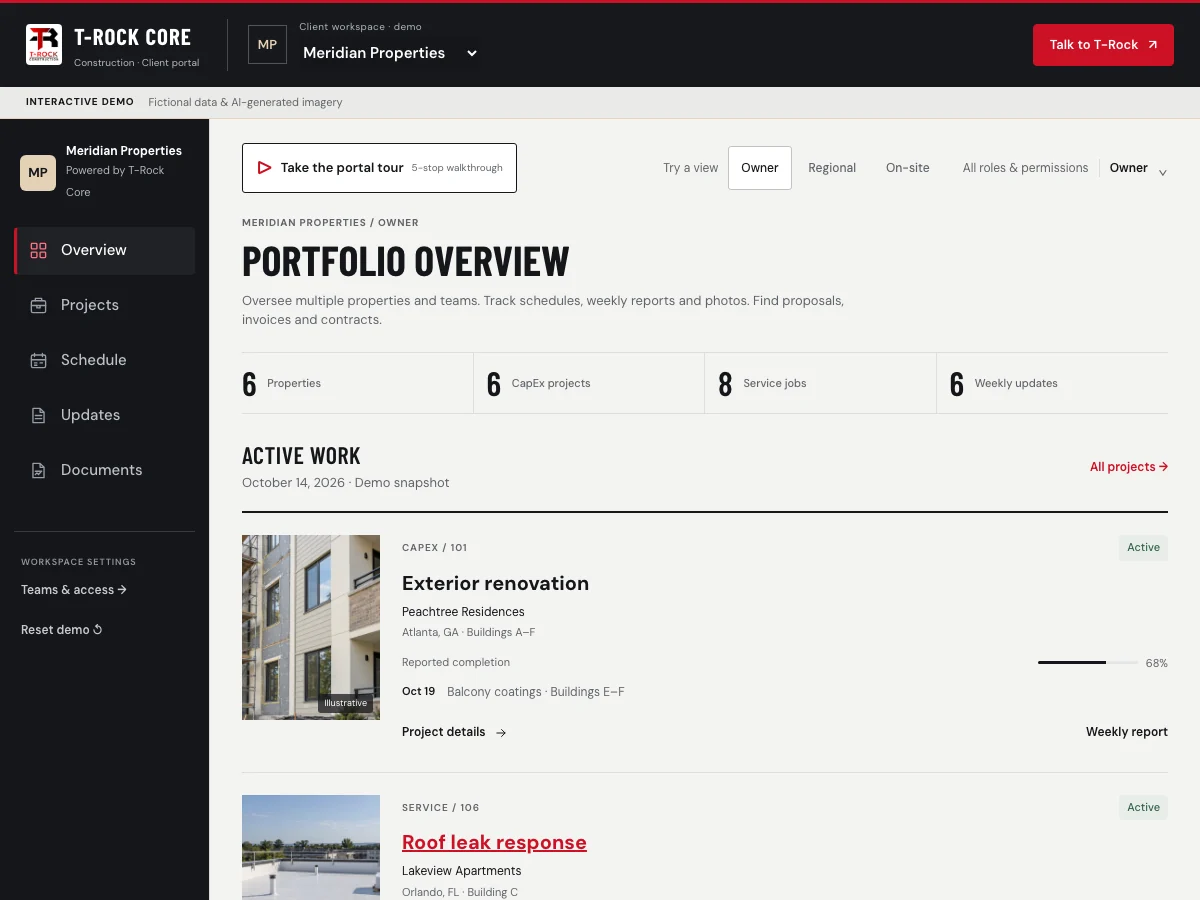
From the portfolio to the property.
Switch between owner, regional manager and on-site roles to see how the same portfolio can be presented at different levels. The demo includes multiple properties, each with its own CapEx projects and service jobs.
Try assigning properties and changing document permissions, job visibility or sample approval limits. Leasing and service roles show how a more focused view could support the people working on site.
Try it: select a role, then open “All roles & permissions” to customize the preview.
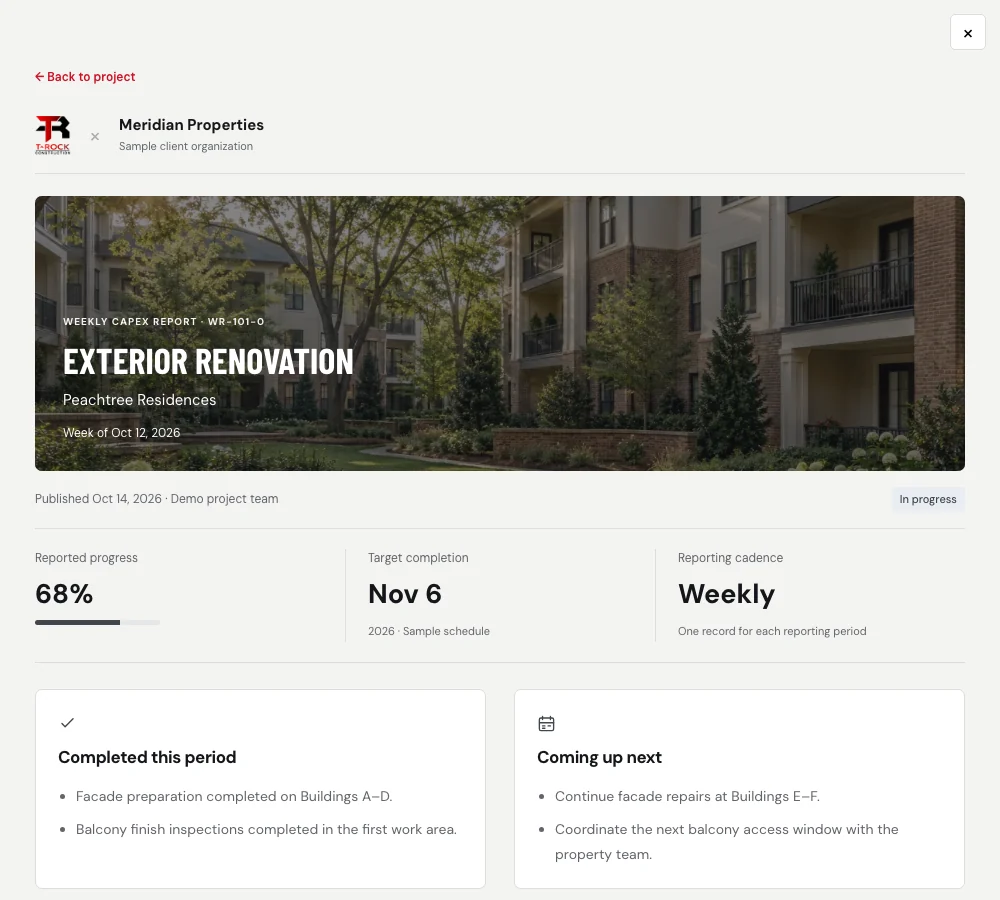
See what happened.
Know what comes next.
Open a project to review its sample schedule and milestones. Weekly CapEx reports bring completed work, the next reporting period and property coordination notes into one record.
The preview also links reports to T-Rock Cam images and project galleries. Explore how photos and written updates could help an off-site owner follow the work alongside the property team.
Try it: open an active CapEx project, choose its weekly report, then follow a linked photo.
Read a real field-report example
Anonymized field-report example · Boynton Beach, Florida · October 7, 2026
This summary comes from a real T-Rock exterior renovation field report. It shows how a dated update separates completed tasks, changing site conditions and outstanding work.
Reported progress: Doors were painted, balcony painting progressed, and areas were marked for punch work.
Site conditions: Rain interrupted exterior work toward the end of the day.
Response: The crew moved inside and began punch work.
Open follow-up: The report flagged possible paint touch-ups after rain.
This is a paraphrased field-report summary, not a client-portal screenshot or a claim that the project was complete. The interactive portal demo uses fictional data.
Review T-Rock’s construction qualifications and project evidence.
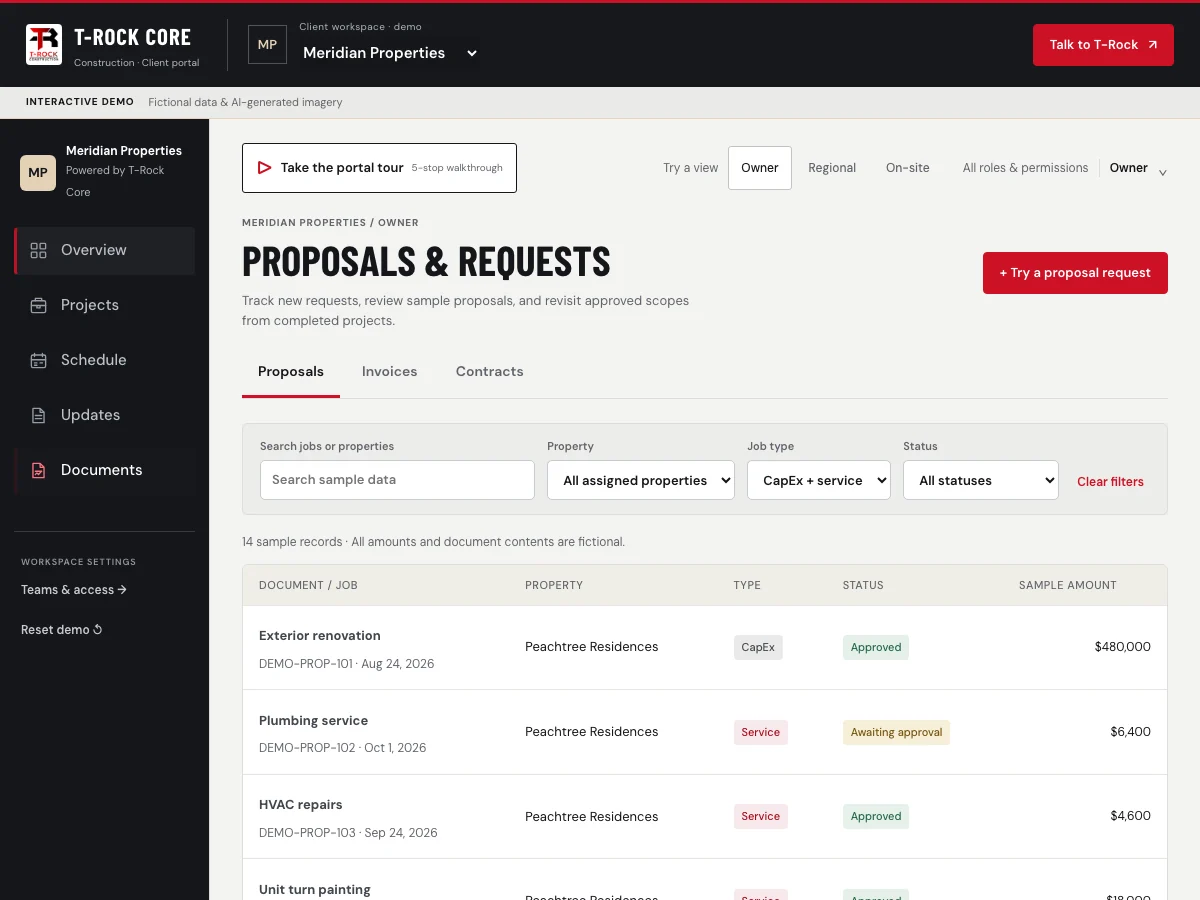
Keep the paperwork with the project.
Browse sample proposals, invoices and contracts by property, job type and status. Open a record to see its related job, scope and fictional financial details.
Try the proposal-request flow and role-based approval examples. These interactions only change your temporary demo: they do not submit a request to T-Rock, approve a real proposal or make a payment.
Try it: choose Documents and switch between Proposals, Invoices and Contracts.